CapsLock Enhancement
Transform ⇪CapsLock into a powerful modifier ✱ Hyper that miraculously increases your work productivity! Make CapsLock Great Again!
Download & Install
Download Karabiner-Elements. This guide was verified with version 16.1.0 in August 2026; use the official site for the current release and support matrix.
Enable Configuration
Import the current CapsLock Enhancement configuration by clicking here.
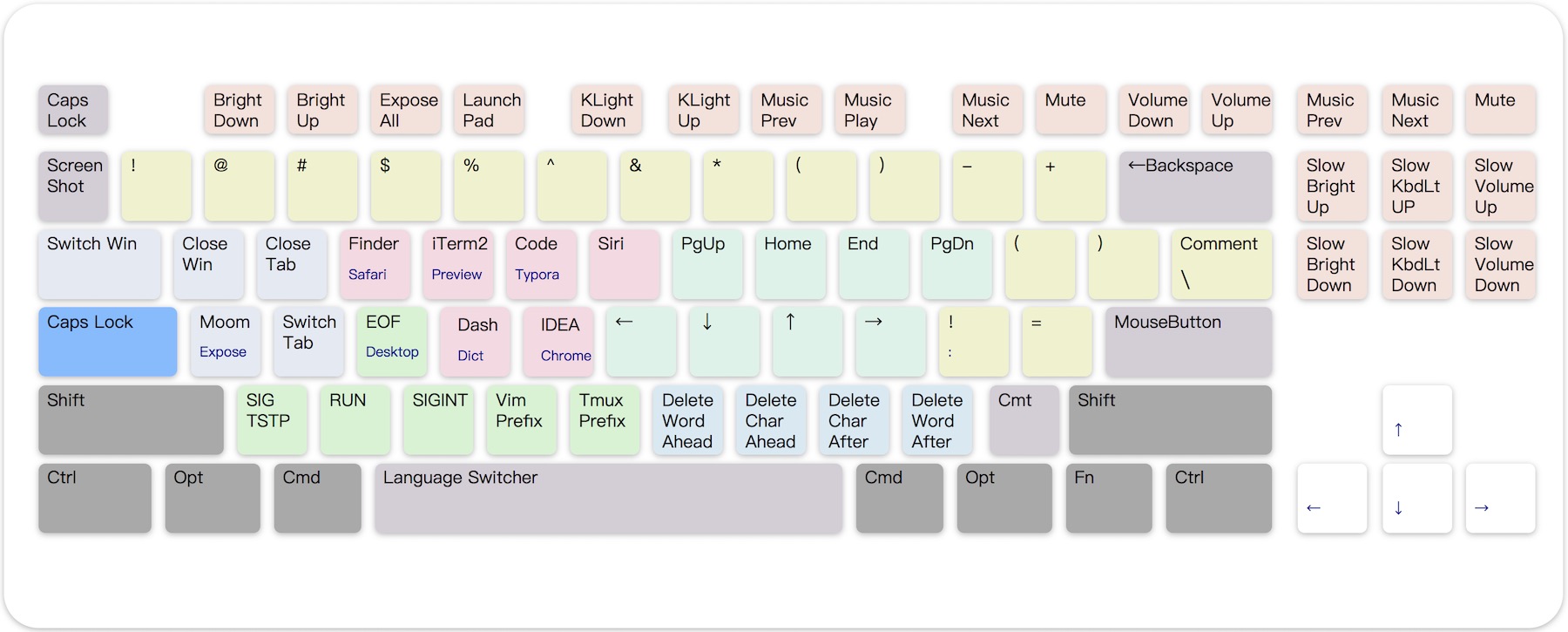
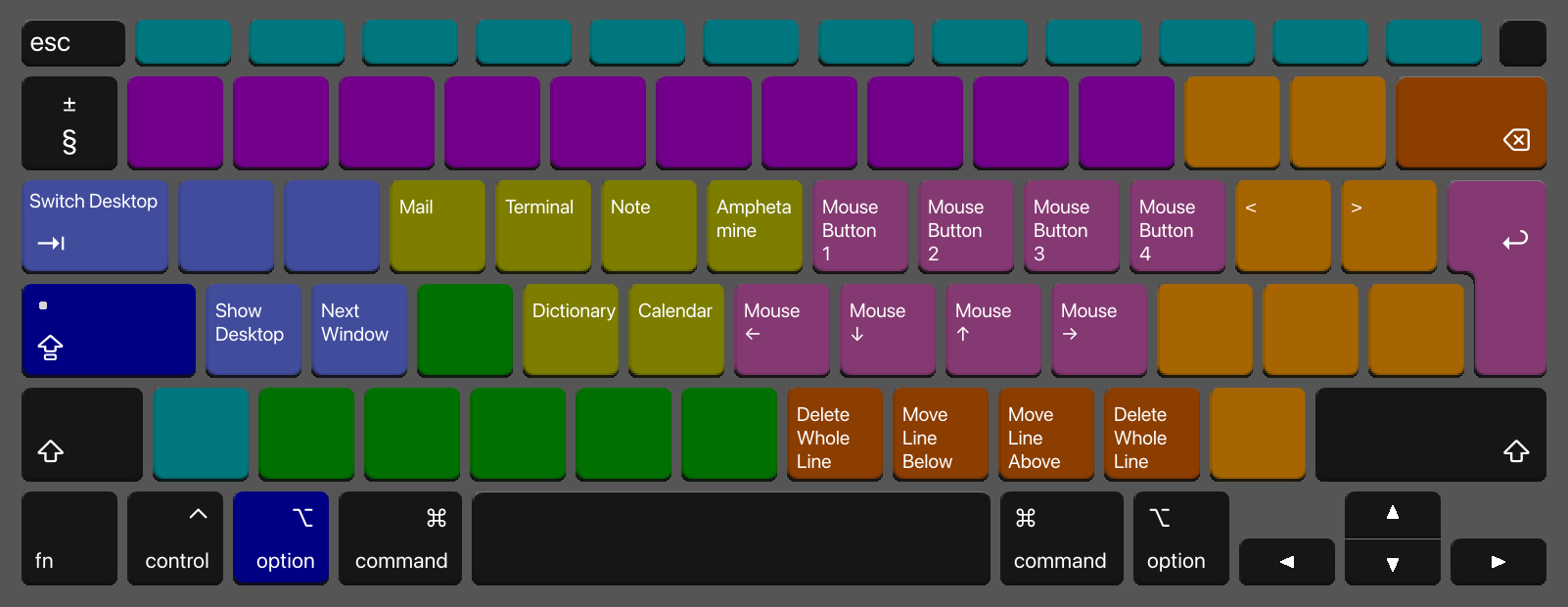
Control Plane 0 Layout (There are 15 more available!)
Highlights
- Powerful: Transform Capslock into a great modifier: Hyper(✱). (such as ⇧⌃⌥⌘)
- Useful: Navigation, mousekey, clipboard, win/term ctrl, shortcuts, etc… Redefine the keyboard!
- Speed-Up: Optimized for developers, high-frequency move stay in hot zone.
- Extensible: Work with existing modifiers, which introduce 16 extra control planes.
- MouseKey: Manipulate mouse cursor and wheels with keyboard
- Lightweight: The actively maintained V3 configuration targets macOS; the historical Windows version remains archived.
Features
- Basic : Press ⇪ Capslock emit an ⎋ Escape. Hold it enabling the ✱ Hyper Modifier.
- Navigation : Vim style navigation. Cursor move, text selection, switch desktop/window/tab, mouse move/wheel,etc…
- Deletion : Maps
BNM,to deletion operation to perform fast char/word/line deletion without hand move. - MouseKey : Maps keypad to fully functional mouse
- Window : Close app/win/tab, Switch app/win/tab/desktop, integration with win-manager app such as Moom, Slate, Magnet
- Application : Shortcuts for launching or switching frequently used applications
- Terminal : Send terminal/IDE commands, launch Codex or Claude, and use Vim/Tmux prefix keys via ✱.
- Clipboard : Turn number keys 6–0 into five text clipboards. ✱⌘n copies and ✱n pastes.
- Shifter : Turn some keys into common code symbols.
- Functional : Screenshots, standard function keys, and fine-grained brightness, keyboard-light, and volume control.
Install
This guide was verified with Karabiner-Elements 16.1.0 in August 2026. The current release supports macOS 13–27 on Intel and Apple silicon.
Install Karabiner-Elements
Download Karabiner-Elements, open the DMG, and run
Karabiner-Elements.pkg.Open Karabiner-Elements Settings and follow its System Settings prompts. Allow the privileged and non-privileged background services, Accessibility, Input Monitoring, and the Driver Extension. In Virtual Keyboard, select the layout matching your physical keyboard. See the official installation guide.
Import and enable the configuration
Open this import link, or copy it into your browser:
karabiner://karabiner/assets/complex_modifications/import?url=https://raw.githubusercontent.com/Vonng/Capslock/main/mac_v3/capslock.jsonIn Karabiner-Elements Settings, use Complex Modifications → Add predefined rule → Import more rules from the internet. Complete Import/Allow, enable the rules you need, and verify the result with Karabiner-EventViewer. See the official complex-modifications guide.
For manual installation, download capslock.json into
~/.config/karabiner/assets/complex_modifications/, then choose Add predefined rule.You can now try moving the cursor with ⇪ + h,j,k,l and explore the other features below.
Usage
Capslock works on ANSI keyboards and similar layouts. It literally remaps every keys on the keyboard. Including 10 categories.
Control Planes are defined by combinations of four extra left modifiers: ⌘⌥⌃⇧. This image shows control plane 0.
| Category | Color | Description |
|---|---|---|
| Basic | Blue | Press ⇪ Capslock emit an ⎋ Escape. Hold it enabling the ✱ Hyper Modifier. |
| Navigation | Pink | Vim style navigation. Cursor move, text selection, switch desktop/window/tab, mouse move/wheel,etc… |
| Deletion | Brown | Maps BNM, to deletion operation to perform fast char/word/line deletion without hand move. |
| MouseKey | Keypad | Maps keypad to fully functional mouse |
| Window | Azure | Close or switch apps, windows, tabs, and desktops; integrate with an external window manager. |
| Application | Yellow | Shortcuts for launching or switching frequently used applications |
| Terminal | Green | Send terminal/IDE commands, launch Codex or Claude, and use Vim/Tmux prefix keys via ✱. |
| Clipboard | Purple | Turn number keys 6–0 into five text clipboards. ✱⌘n copies and ✱n pastes. |
| Shifter | Orange | Turn some keys into common code symbols. |
| Functional | Cyan | Screenshots, standard function keys, and fine-grained light/volume control. |
Basic
| Key | MapsTo | Comment |
|---|---|---|
| ⇪ Press | ⎋ Escape | Click Capslock to emit Escape |
| ⇪ Hold | ✱ Hyper | Hold Capslock to enable Hyper modifier. |
| ✱⎋ | ⇪ Capslock | Press to switch Capslock status |
| ✱␣ | ⌃␣ | Switch input source, +⌘ to emoji |
Note that ✱ is implemented as the combination of ALL RIGHT MODIFIERS: ⌘⌥⌃⇧.
Hold ✱ Hyper to enable hyper functionalities. We will assume and omit that in subsequent document.
Navigation
- H, J, K, L, U, I, O, P are used as Navigators. Maps to ←↓↑→⇞↖↘⇟ by default. (pink area).
- 9 control planes has already been allocated for navigators.
- Hold additional ⌘ Command for selection. (like holding ⇧shift in normal), additional ⌥ Option for word/para selection.
- Hold additional ⇧ Shift for app/win/tab switching. Hold additional ⌃ Control for desktop management.
- Hold the additional ⌥ Option for 🖱️ mouse move. Add ⇧shift to ⏫ accelerate. (U, I, O, P maps to mouse buttons).
- ⇧⌥ turns navigator to 🖲️ mouse wheel, and ⇧⌘ is the ⏫ accelerated version .
HJKLfor wheel, whileUIOPfor reversed wheel move.
| Feature | Move | Select | WordSel | Window | Desktop | 🖱️ | 🖱️⏫ | 🖲️ | 🖲️⏫ |
|---|---|---|---|---|---|---|---|---|---|
| Key\Mod | ✱ | ⌘ | ⌘⌥ | ⇧ | ⌃ | ⌥ | ⇧⌥ | ⇧⌃ | ⇧⌘ |
| H | Left | word left | word left | prev tab | prev desk | ⬅️ | ⬅️⏫ | ⬅️ | ⬅️⏫ |
| J | Down | line down | 3 line down | next app | focus | ⬇️ | ⬇️⏫ | ⬇️ | ⬇️⏫ |
| K | Up | line up | 3 line up | prev app | expose all | ⬆️ | ⬆️⏫ | ⬆️ | ⬆️⏫ |
| L | Right | word right | word right | next tab | next desk | ➡️ | ➡️⏫ | ➡️ | ➡️⏫ |
| U | PgUp | prev page | prev page | zoom- | fullscreen | 🖱️L | 🖱️L | ➡️ | ➡️⏫ |
| I | Home | line head | end2head | prev win | hide | 🖱️R | 🖱️R | ⬆️ | ⬆️⏫ |
| O | End | line end | head2end | next win | hide all | 🖱️B | 🖱️B | ⬇️ | ⬇️⏫ |
| P | PgDn | next page | next page | zoom+ | Spotlight | 🖱️F | 🖱️F | ⬅️ | ⬅️⏫ |
Arrow Navigation
- Arrows ←↓↑→ to 🖱️ mouse actions too. Hold ⌥ Option to ⏬ slow down, hold ⌘ Command to ⏫ speed up.
- Hold ⇧ Shift turns to 🖲️ wheel move. Extra ⌥ Option to ⏬ slow down, extra ⌘ Command to ⏫ speed up.
- ↩ Return maps to left-click. And additional ⌘⌥⌃⇧ turns into right click, middle-click, backward, forward.
| Feature | 🖱️ | 🖱️⏬ | 🖱️⏫ | 🖲️ | 🖲️⏬ | 🖲️⏫ |
|---|---|---|---|---|---|---|
| Key\Mod | ✱ | ⌥ | ⌘ | ⇧ | ⇧⌥ | ⇧⌘ |
| ←↓↑→ | speed = 1600 | speed ÷ 2 | speed × 2 | speed = 32 | speed ÷ 2 | speed × 2 |
| ↩ | 🖱️L | 🖱️M | 🖱️R | 🖱️L | 🖱️B | 🖱️F |
Deletion
N M , . are used as Deletor keys. Right below the navigators for fast access (brown area).
| Key\Mod | ✱ | ⌘ | ⌥ |
|---|---|---|---|
| N | del a word ahead | del till line head | del the whole line |
| M | del a char ahead | del a word ahead | move line below |
| , | del a char after | del a word after | move line above |
| . | del a word after | del till line end | del the whole line |
| ⌫ | del file | purge file |
MouseKey
- Turn Keypad into a fully functional 🖱️ mouse.
- Numbers maps to 8 direction 🖱️ mouse move. Hold ⌥ Option to ⏬ slow down, hold ⌘ Command to ⏫ speed up.
- Hold additional ⇧ Shift turns to 🖲️ wheel move. Extra ⌥ Option to ⏬ slow down, and extra ⌘ Command to ⏫ speed up.
- First line maps to wheel move and 0, ., ⌤, +, - maps to five mouse buttons.
| ⇭ 🖲️⬅️ | = 🖲️⬇️ | / 🖲️⬆️ | * 🖲️➡️ |
|---|---|---|---|
| 7🖱️ ↖️ | 8 🖱️⬆️ | 9 🖱️↗️ | - 🖱️B |
| 4🖱️ ⬅️ | 5🖱️ | 6 🖱️➡️ | + 🖱️F |
| 1🖱️↙️ | 2 🖱️⬇️ | 3 🖱️↘️ | |
| 0 🖱️L | . 🖱️M | ⌤ 🖱️R |
Window Control
Tab, Q, W, A, s used as window control keys. Focusing on close/switch applications / windows / tabs / desktops. (azure area)- Window layout is delegated to an external application such as Moom or Magnet. Bind ⌃⌥⇧⌘A manually. Slate is retained only as a legacy example.
| Key\Mod | ✱ | ⌘ | ⌥ | ⌃ | ⇧ |
|---|---|---|---|---|---|
| ⇥ | next app | prev app | switch desktop | switch tab | |
| Q | close app | close app | Lock Screen | Logout | |
| W | close tab | close all win | Display Sleep | Sleep | |
| A | win app | expose all | show desktop | Spotlight | |
| S | next tab | prev tab | next win | prev win |
App Shortcuts
- E R T Y F G are used as application shortcuts. (yellow area)
- Popular apps and dev tools are registered to 3 default planes: ✱/⌘/⌥. Assign these shortcuts according to your own needs.
| Key\Mod | ✱ | ⌘ | ⌥ |
|---|---|---|---|
| E | Safari | Finder | |
| R | iTerm2 | Preview | Terminal |
| T | Visual Studio Code | Typora | Notes |
| Y | Siri | Karabiner-Elements | Amphetamine |
| F | Alfred 5 | Dash | Dictionary |
| G | IntelliJ IDEA | Chrome | Calendar |
Terminal Control
D, Z, X, C, V, B provide terminal and IDE commands, launch Codex or Claude, and expose Vim/Tmux prefix keys. (green area)
| Key\Mod | ✱ | ⌘ |
|---|---|---|
| D | ⌃D Ctrl+D (Send EOF) | Define (Force touch) |
| Z | ⌃Z Ctrl+Z (SIGTSTP) | F5 (VS Code Debug) |
| X | ⌃R Ctrl+R (IDE Run) | ⌃F5 (VS Code Run) |
| C | Open Codex | Open Claude |
| V | ⌃VCtrl+V (Vim Prefix) | |
| B | ⌃BCtrl+B (Tmux Prefix) |
Clipboard
Number keys 6, 7, 8, 9, 0 provide five text clipboards. Hold ⌘ to copy, and press a number to paste. (purple area)
| Key\Mod | ✱ | ⌘ |
|---|---|---|
| 6 | Paste from clip 6 | Copy to clip 6 |
| 7 | Paste from clip 7 | Copy to clip 7 |
| …… | …… | …… |
| 0 | Paste from clip 0 | Copy to clip 0 |
Shifter
- Trivial transformation for misc characters. (orange area)
- Some special tricks for developers. Such as
;'maps to:=or!=(⌘)
| Key\Mod | ✱ | ⌘ | ⌥ |
|---|---|---|---|
| - | _ | Zoom Out | |
| = | + | Zoom In | |
| [ | ( | { | «/kbd> |
| ] | ) | } | > |
| ; | ! | : | |
| ’ | = | = | |
| / | ⌘/ | ||
| \ | ⌘/ |
Functional
Use F1,…F12 as standard function keys, while holding ✱ Hyper sends their media/system functions. (cyan area)
⌘Command + F1 / F2 / F3 switches desktops. Enable the shortcuts first:
System Settings → Keyboard → Keyboard Shortcuts… → Mission Control → Switch to Desktop 1/2/3
Karabiner-Elements 15.1 and later use the macOS function-key setting. Configure it in:
System Settings → Keyboard → Keyboard Shortcuts… → Function Keys → Use F1, F2, etc. keys as standard function keys
Touch Bar instructions apply only to legacy Touch Bar Macs; see the official troubleshooting note.
| Key\Mod | ✱ | ⌘ | Comment |
|---|---|---|---|
| ` | ⌃⇧⌘4 | ⇧⌘4 | Area selection screenshot(⌘ to file) |
| F1 | display_brightness_decrement | ⌃1 | ⌃1 | Brightness Down / Desktop 1 |
| F2 | display_brightness_increment | ⌃2 | ⌃2 | Brightness Up / Desktop 2 |
| F3 | ⌃↑ | ⌃3 | ⌃3 | Expose All / Desktop 3 |
| F4 | Spotlight | Spotlight | |
| F5 | illumination_decrement | Keyboard Light Down | |
| F6 | illumination_increment | Keyboard Light Up | |
| F7 | rewind | Music Prev | |
| F8 | play_or_pause | Play / Pause | |
| F9 | fastforward | Music Next | |
| F10 | mute | Mute | |
| F11 | volume_decrement | Volume Down | |
| F12 | volume_increment | Volume Up | |
| F13 | ⌃⇧⌘3 | ⇧⌘3 | Full screenshot (⌘ to file) |
| F14 | ⇧⌘5 | ⇧⌘6 | Screenshot menu (⌘: legacy Touch Bar screenshot) |
| F15 | play_or_pause | Play / Pause | |
| Insert | ⇧⌥ display_brightness_increment | Fine-Grained Brightness Up | |
| Delete ⌦ | ⇧⌥ display_brightness_decrement | Fine-Grained Brightness Down | |
| Home ↖ | ⇧⌥ illumination_increment | Fine-GrainedKeyboard Light Up | |
| End ↘ | ⇧⌥ illumination_decrement | Fine-Grained Keyboard Light Down | |
| PgUp ⇞ | ⇧⌥ volume_increment | Fine-Grained Volume Up | |
| PgDn ⇟ | ⇧⌥ volume_decrement | Fine-Grained Volume Down |
References
Symbols
| Glyph | Name | Glyph | Name |
|---|---|---|---|
| ⇪ | Capslock | ✱ | Hyper |
| ⎋ | Escape | ␣ | Space |
| ⌘ | Command (Mac) | ⎇ | Alter (Win) |
| ⌥ | Option (Mac) | ⊞ | Win (Win) |
| ⌃ | Control | ⇧ | Shift |
| ↩ | Return | ⌤ | Enter |
| ←↓↑→ | Arrow Cursor | ↖↘ | Home/End |
| ⇥⇤ | Tab | ⌫⌦ | Delete / ForwardDelete |
| ⇭ | Numlock | ⏫⏬ | Fast / Slow |
| 🖱️L | Mouse Left Click (Button1) | 🖱️B | Mouse Backward (Button4) |
| 🖱️R | Mouse Right Click (Button2) | 🖱️F | Mouse Forward (Button5) |
| 🖱️M | Mouse Middle Click (Button3) | 🖲️ | Mouse Wheel |
Control Planes
control planes
| Plane | Modifiers | Plane | Modifiers | Plane | Modifiers |
|---|---|---|---|---|---|
| 0 | ✱ | 3 | ✱⌘⌥ | 7 | ✱⌘⌥⌃ |
| 1 | ✱⌘ | 5 | ✱⌘⌃ | 11 | ✱⌘⌥⇧ |
| 2 | ✱⌥ | 6 | ✱⌥⌃ | 13 | ✱⌘⌃⇧ |
| 4 | ✱⌃ | 9 | ✱⌘⇧ | 14 | ✱⌥⌃⇧ |
| 8 | ✱⇧ | 10 | ✱⌥⇧ | 15 | ✱⌘⌥⌃⇧ |
| 12 | ✱⌃⇧ |
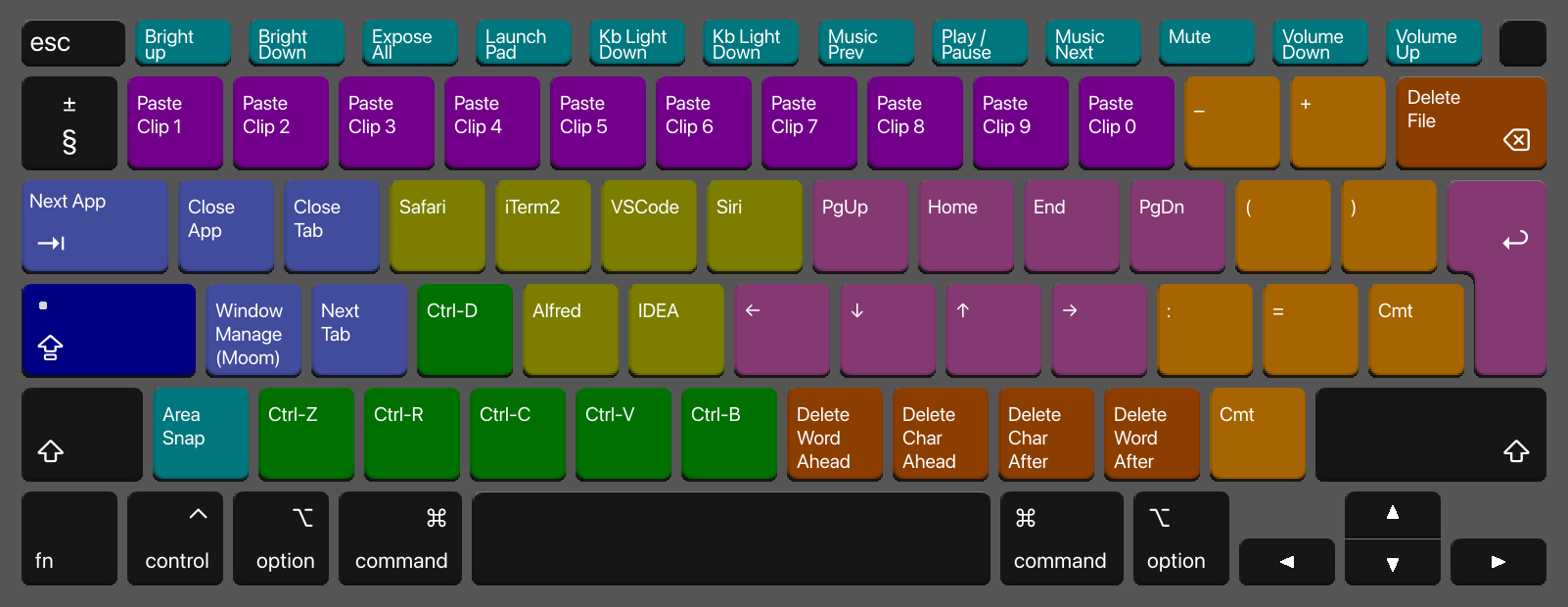
Plane 0
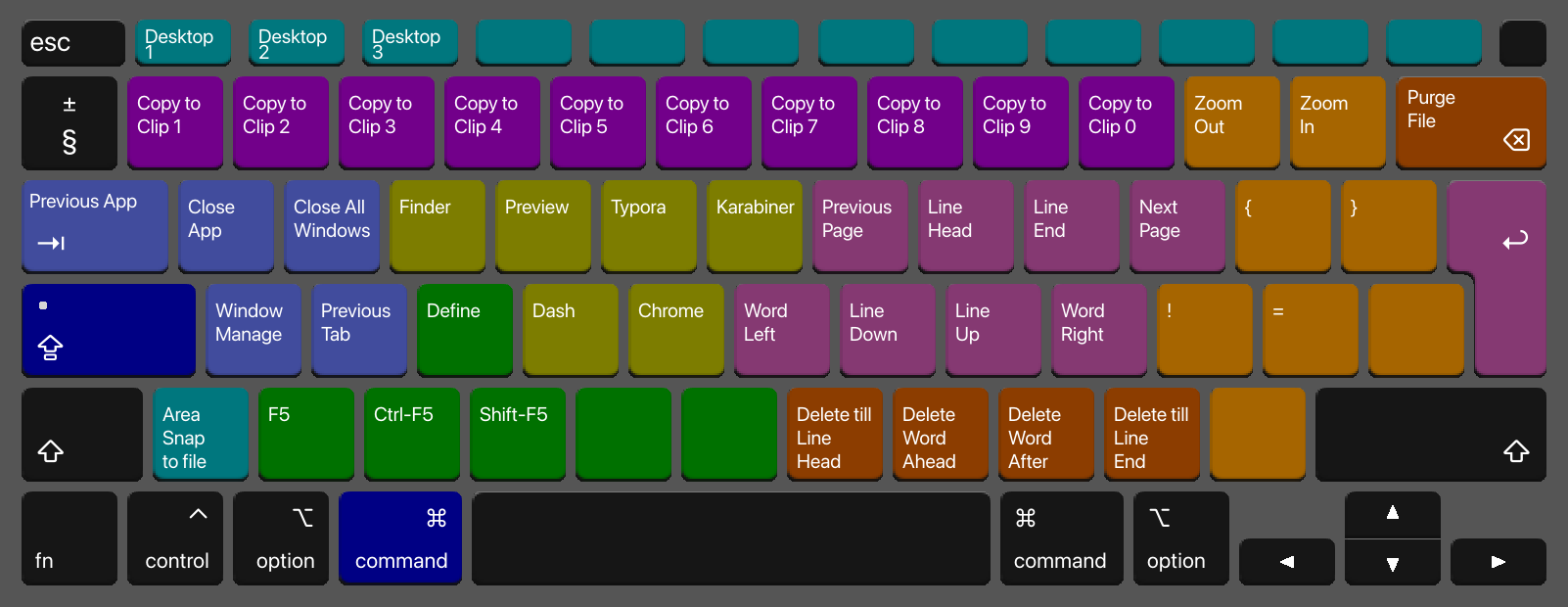
Plane 1
Plane 2
Version
- Capslock Mac V3: 2021.03 - present (actively maintained)
- Capslock Mac V2: 2017 - 2021
- Capslock Mac V1: 2015 - 2017
- Capslock Win: 2013 - 2015 (archived)
The current Mac V3 documentation is verified against Karabiner-Elements 16.1.0. Its official support matrix covers macOS 13 Ventura through macOS 27 Golden Gate on Intel and Apple silicon. Older macOS releases require an archived Karabiner-Elements release and are not covered by the current V3 installation guide.
The Windows version is archived. Its pre-compiled binary and AutoHotkey source remain available for historical use, but are not actively tested or maintained.
FAQ
Q: Why using ✱ as the symbol for Hyper?
A: Because the ASCII code for * is exactly 42, which is the ultimate answer to life, universe, and everything. ✱ (Heavy-Asterisk) is a pretty version of *.
Q: What’s new in v3?
A: V2 used only a few control planes. V3 can combine Hyper with the four left modifiers to expose up to 16 planes and organize many more functions consistently.
V3.1 updates the application shortcuts for current macOS: C launches Codex, ⌘C launches Claude, number keys 6–0 provide five clipboards, Spotlight replaces Launchpad, and Alfred 5 replaces Alfred 4.
Q: Which compatibility changes should I know about?
A: The current V3.1 layout intentionally changes several shortcuts from older releases:
- F13/F14 provide screenshot controls instead of previous/next track.
- Number keys 6–0 provide five text clipboards; 1–5 are no longer clipboard slots.
- C and ⌘C launch Codex and Claude.
- Spotlight and Alfred 5 replace Launchpad and Alfred 4.
- ⌘D performs Define instead of opening Dictionary.
Q: Why is there no Linux OS support?
A: I’m using Linux through macOS terminal. It actually feels much better than raw Linux 😆. This feature can be achieved via xmodmap, contribution is welcome!
Q: Why is there an older version in macOS?
A: Legacy Karabiner used XML configuration and was replaced by Karabiner-Elements for macOS Sierra and later. The repository retains those older configurations for historical systems.
Q: How can I customize it to my needs?
A: Fork this repository and edit the human-readable mac_v3/capslock.yml according to the Karabiner-Elements documentation, then regenerate capslock.json with make -C mac_v3 compile (requires yq v4).
Q: Is this original?
A: This project started with an AutoHotkey version in 2013 and added its first Mac version in 2015. The current configuration is listed in the Karabiner-Elements complex-modifications gallery.
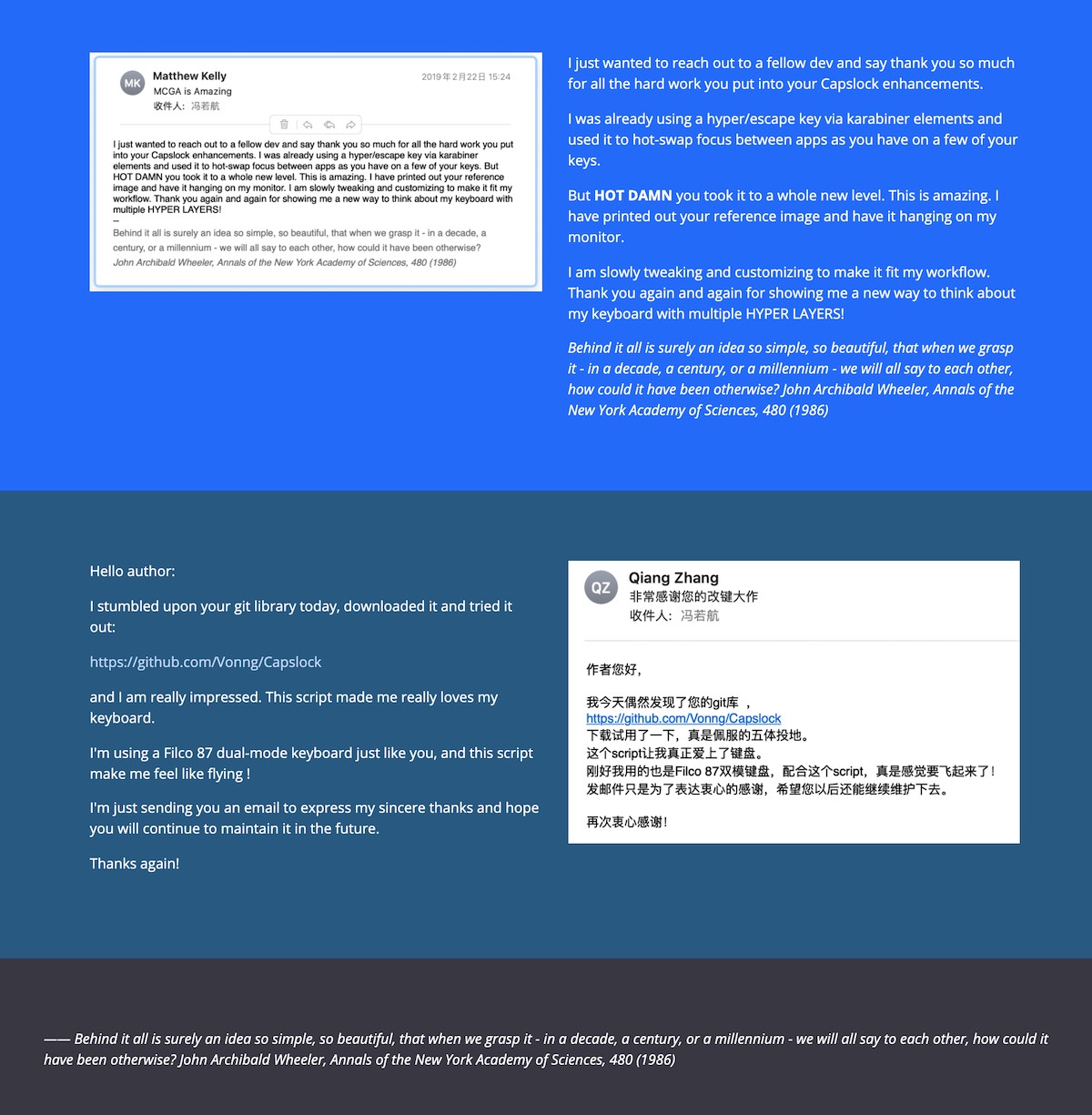
User Feedback
About
Author: Vonng (rh@vonng.com)
License: Apache 2.0 License